
Chrome desktop · Developer mode
Install Amazing Relay in Chrome
Download the extension and follow the illustrated steps below. First-time installation takes about two minutes.
Installation requires Chrome on a desktop computer.
First installation
Install from the downloaded folder
Chrome loads Amazing Relay directly from the extracted folder, so keep that folder in a permanent location.
-
01
Download and extract the ZIP
Open Chrome Downloads, choose Show in folder for AmazingRelay.zip, then right-click the ZIP and choose Extract All. Open the extracted folders until you can see
manifest.json. Rename the folder that directly contains it to Amazing Relay and move it somewhere permanent, such as Documents.Keep this folder after installation. Do not load the ZIP itself.
AmazingRelay.zip450 KB ZIPAmazing RelayMove this folder to Documents -
02
Turn on Developer mode
Open the Chrome menu ⋮, then choose Extensions → Manage extensions. You can also enter
chrome://extensionsin the address bar.On the Extensions page, turn on Developer mode in the top-right corner.

Open menu ⋮, choose Extensions, then Manage extensions—or enter chrome://extensions in the address bar. -
03
Load the extracted folder
- Click Load unpacked.
- Open the Amazing Relay folder and make sure
manifest.jsonis inside. - Click Select Folder.
Select the extension folder itself—not the ZIP and not the folder above it.

Click Load unpacked, open the Amazing Relay folder, check that manifest.json is inside, then choose Select Folder. -
04
Confirm the installation
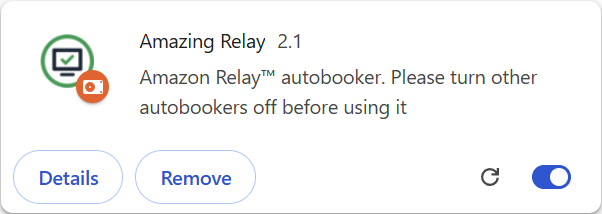
Installation is complete when the Amazing Relay card appears and its switch is on. Open or reload Amazon Relay to start using the extension.
Before opening Amazon Relay, turn off any other Relay auto-booking extensions to avoid conflicts.
First-time installation ends here. Use the section below only when replacing an older version.
Updating an older version
Update the existing installation
Use the same permanent folder you previously selected with Load unpacked. Replace only its contents, reload the extension, and refresh Amazon Relay.
- 1Download and extract
Extract the new ZIP to a temporary location. Open the extracted folders until you find the folder that directly contains
manifest.json. - 2Replace the existing files
Open the permanent Amazing Relay folder you previously selected with Load unpacked. Before deleting anything, confirm that
manifest.jsonis directly inside it. Delete only the contents of this folder, then copy in everything from the newly extracted folder identified in step 1. Keep the permanent folder itself in the same location. - 3Reload the extension
Open Chrome menu ⋮ → Extensions → Manage extensions (or enter
chrome://extensions), then click the reload icon on the Amazing Relay card. - 4Refresh Amazon Relay
Reload every open Amazon Relay tab so it uses the updated extension.
Avoid an extra folder level: manifest.json must remain directly inside the permanent Amazing Relay folder.
Final check
How to know it worked
- The Amazing Relay card is enabled and shows version 2.1.
- Amazing Relay controls load normally inside the Load Board.
- When updating: after refreshing Amazon Relay, the old-version notice no longer appears.
Troubleshooting
Quick fixes
There is no “Load unpacked” button
Open Chrome menu ⋮ → Extensions → Manage extensions, then turn on Developer mode in the top-right corner. The button appears immediately.
Chrome says the manifest file is missing
Select the extracted folder that directly contains manifest.json. Do not select the ZIP or the folder above it.
The version did not change after updating
Make sure the new files are inside the permanent extension folder without an extra nested version folder. Then click Reload again and refresh Amazon Relay.
Amazing Relay disappeared after its folder was moved
Put the folder back in its original location, or use Load unpacked again and select its new permanent location.
Multiple installations
Keep only one Amazing Relay extension
Open Chrome menu ⋮ → Extensions → Manage extensions, leave only one Amazing Relay card enabled, then remove or disable the other copy and refresh Amazon Relay.